
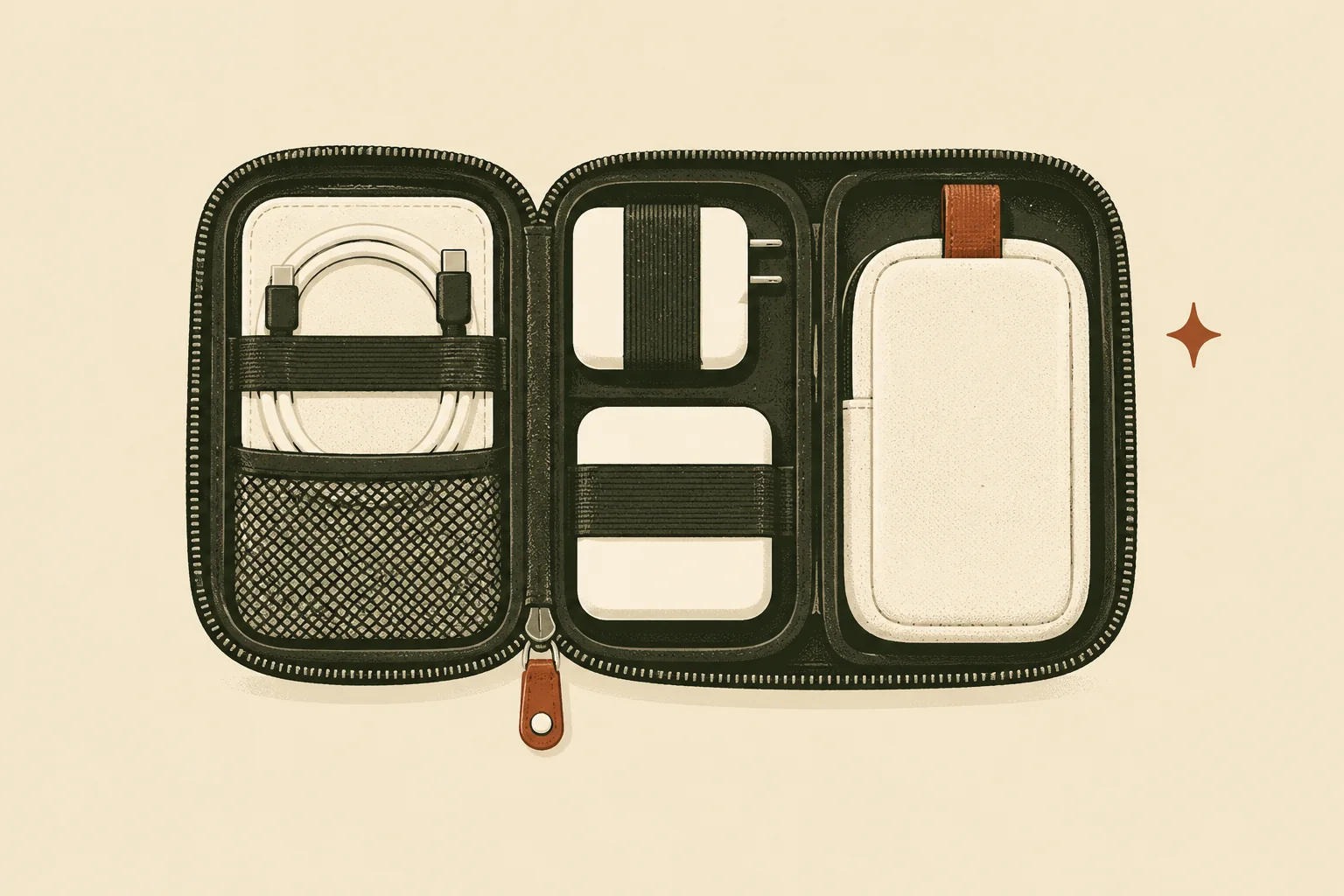
A dependable digital nomad tech stack is not the longest gear list you can fit into a carry-on. It is the smallest system that supports your real work, survives its most likely failure, and gives you a practical way to recover.
Start with the workday you cannot afford to lose. Identify what must stay available—calls, code, design files, client records, cloud tools, authentication, or large uploads—then build one primary path and one independent fallback for each critical dependency.
Affiliate disclosure: No affiliate links are active in this guide. If commercial links are added later, Capable Nomad may earn a commission at no added cost to the reader. Inclusion must remain based on the source-dated criteria in this guide, not commission availability.
Start with the workload, not the shopping list
The same travel setup does not fit a writer, a developer, and a consultant who leads six hours of video calls. Their bottlenecks and failure costs differ.
Use these tiers as a starting point, then adjust them for employer rules and specialist software.
| Workload | Critical path | Sensible baseline | Failure worth preparing for |
|---|---|---|---|
| Light production | Browser, documents, messaging, occasional calls | Reliable laptop, phone data, compact charger, account recovery | Accommodation Wi-Fi outage during a deadline |
| Call-heavy client work | Stable upload, clear audio, private space, calendar access | Laptop, wired headset, independent mobile data, charging redundancy | Congested Wi-Fi or failed audio before a client call |
| Technical or creative work | Sustained compute, large files, specialist ports or display | Workload-capable laptop, verified hub/cables, local working copy, tested backup | Missing adapter, failed storage, or slow upload blocking delivery |
| Regulated or employer-managed work | Approved device, secure access, policy-compliant location and network | Organization-approved hardware and authentication, documented support route | Account lockout or a setup that violates policy |
Video software illustrates why a speed-test headline is not enough. Microsoft’s Teams network guidance says Teams can deliver HD video in under 1.5 Mbps, but its recommended group-meeting guidance reaches 2.5 Mbps up and 4 Mbps down per endpoint. Zoom’s current web-app requirements list 2.6 Mbps up and 1.8 Mbps down for 720p HD. Both services adapt to conditions, and neither figure accounts for someone else saturating the same connection.
Treat those values as application baselines, not booking guarantees. A work-ready connection also needs stable upload, tolerable latency and jitter, and enough headroom for cloud sync, screen sharing, and other users.
Build the stack in seven layers
Each layer has one job. Buy or add something only when it closes a documented gap.
1. A computer that can finish the work
Choose the operating system, memory, storage, processor, and graphics capability required by your heaviest normal task—not by an imagined future task. Confirm that employer security tools, video software, virtual private network (VPN) clients, and specialist applications support the exact operating-system version.
Then identify the failure boundary. If losing the laptop would stop income for a week, a second full laptop is only one possible answer. A faster answer may be encrypted cloud backup, a tested browser-based workflow, accessible licenses, and a replacement plan for the next city.
Skip the upgrade when: your current computer completes the real workload, receives security updates, holds a healthy battery, and passes the recovery rehearsal later in this guide.
2. A primary connection and an independent backup
Accommodation or coworking Wi-Fi can be the primary path. It should not be the only path when calls or deadlines matter.
A useful fallback fails differently. Phone tethering over a second network is more independent than a second device using the same accommodation router. A nearby coworking day pass can be more useful than another gadget during a building-wide outage. Independence matters more than the number of connection icons in your bag.
Before travel, check whether your mobile plan permits tethering, how much high-speed data is included, and whether roaming changes those terms. At the destination, test the fallback from the actual work device rather than assuming the phone’s signal bars prove laptop connectivity.
Skip a travel router when: you use one or two devices, your approved security software already protects the workflow, and you do not need wired Ethernet, repeated captive-portal handling, or a private local device network.
3. Enough power for the critical path
Write down the rated input for the laptop and the simultaneous demand of any phone, tablet, display, hotspot, or accessory you must charge. A multi-port charger’s large headline wattage may be split differently when several ports are active, so compare the port-combination table—not only the number printed on the front.
USB Power Delivery (USB PD) negotiates power between compatible devices. The current USB-IF system supports up to 240 W, but a high-wattage charger does not make every cable or device accept that power. Charger profile, cable rating, port, and device input must align.
For air travel, treat battery rules as a live constraint. The U.S. Federal Aviation Administration (FAA) says spare lithium-ion batteries and power banks generally belong in carry-on baggage. Up to 100 Wh is generally allowed; 101–160 Wh needs airline approval, and airlines may impose stricter limits. Check the operating airline before every trip.
Skip the largest charger or battery when: a smaller unit covers the measured workload and the extra capacity adds unused mass, more difficult plug fit, or airline friction.
4. A call path that does not depend on one wireless accessory
Client-facing calls fail in ordinary ways: an uncharged headset, Bluetooth pairing trouble, room echo, construction noise, or a laptop choosing the wrong microphone.
Build for intelligibility before studio quality. Test the laptop microphone and speakers, then add a headset when the environment or privacy requires it. A simple wired headset can be a useful fallback because it avoids charging and radio pairing, provided the connector works with the laptop or tested adapter.
Keep the call link and dial-in details accessible on a second device. Know how to disable incoming video when bandwidth falls and how to continue with audio only.
Skip creator-grade audio and lighting when: colleagues can hear and see you clearly in the spaces where you actually work.
5. Only the ports, cables, and adapters the workflow uses
List each physical connection: charging, external storage, display, Ethernet, audio, and camera-card transfer. Match those needs against the laptop and hub.
One cable is not interchangeable with every other USB-C cable. Some carry modest charging power; some support higher-power USB PD; some carry fast data or video; some do not. Label or store cables by job, and test the exact chain—charger, cable, hub, display, and computer—before departure.
Carry a duplicate only when losing that small item would stop critical work and replacement would be slow. A spare charging cable may pass this test. A fourth video adapter usually does not.
6. Secure access with a recovery route
Account access is part of the equipment list. Use unique passwords managed in a reputable password manager, turn on multi-factor authentication (MFA), and prefer phishing-resistant options such as supported passkeys or hardware security keys for high-value accounts.
Recovery must not depend on the missing device. NIST’s current authentication guidance recommends an alternate authenticator for loss, theft, damage, or compromise. Depending on the service, that may mean a second registered security key stored separately, one-time recovery codes kept offline, or an approved recovery contact and support process.
Follow employer policy. A personal VPN or travel router does not authorize remote work from an unapproved location, and Capable Nomad does not recommend hiding location from an employer or client.
Skip the security gadget when: the service does not support it or your organization mandates a different method. Do not skip the recovery plan.
7. Recoverable files, licenses, and setup notes
Cloud synchronization is useful, but the real question is whether you can restore a previous or deleted file after device loss, corruption, or an account problem. NIST’s backup guidance emphasizes planning, maintaining, and testing backups. A backup you have never restored is an assumption.
Keep a current, encrypted copy of essential work according to client and employer rules. Document application installers, license access, configuration, and support contacts. If data is confidential or regulated, use only approved storage and transfer methods.
Test one restore before travel. Record how long it takes and what still depends on the missing device.
Skip extra copies that violate policy: redundancy is not permission to place client or employer data in a personal cloud account.
Use a five-question buying rule
Before adding anything to the digital nomad equipment list, answer:
- Which task does it enable or protect? Name the exact task.
- What measurable requirement must it meet? Use watts, ports, protocols, capacity, operating-system support, or a recovery time.
- What else must work with it? Include cables, chargers, software, accounts, and plan terms.
- What does it cost to carry? Count mass, volume, setup time, recurring fees, and attention.
- Who should skip it? If there is no clear skip condition, the recommendation is probably too broad.
This rule changes “Do I need this gadget?” into “Does this solve a failure or requirement my current system does not?”
Run a 30-minute critical-path rehearsal
Do this at home while mistakes are cheap.
- Disconnect from your usual Wi-Fi and join a real backup connection from the work laptop.
- Open the applications and files required for one normal work session.
- Join a test call, share a screen, and switch to the backup microphone or headset.
- Unplug wall power and estimate how long the laptop, phone, and connection path remain usable.
- Sign in to one important account using the alternate authentication method.
- Restore one representative file from backup to a separate folder and open it.
- Pack the complete system, then remove anything that has no identified job.
Record failures as actions, not vague reminders. “Buy cable” is weak. “Replace the 60 W-only cable because the laptop requires a 100 W USB PD path” is useful.
What most travellers can leave behind
More redundancy is not automatically more resilience. Duplicates can introduce their own compatibility and packing failures.
Most readers should challenge these additions:
- A portable monitor when window management or a lightweight tablet already solves the task.
- A travel router without a clear wired, captive-portal, policy, or multi-device need.
- Multiple power banks whose combined value is lower than one airline-compliant, correctly rated unit.
- A full studio call kit for occasional internal meetings.
- Adapters for displays or storage the workload never uses.
- A backup device that cannot access the necessary files, licenses, or authentication.
The right stack may still be substantial. The point is that every item has a verified role.
Start here: the Capable Nomad system
Set up the system in this order:
- Define the workload and permitted working conditions.
- Verify a primary connection and an independent fallback.
- Calculate charging needs and outage runtime.
- Prepare secure authentication and account recovery.
- Make essential files restorable.
- Add workstation equipment only where it improves a recurring task.
- Rehearse the critical path before departure.
Frequently asked questions
What technology does a digital nomad need?
At minimum, most working travellers need a workload-capable computer, a primary internet connection, an independent backup connection, compatible charging, secure account access, and recoverable files. Calls, displays, hubs, and peripherals depend on the work.
Do I need a backup laptop?
Not always. Decide from the cost and likely duration of failure. A spare laptop can help when replacement is difficult and downtime is expensive, but only if it can access the required files, applications, and accounts. A documented replacement and recovery path may be lighter and faster.
How many internet connections should I carry?
For deadline- or call-dependent work, plan at least one fallback that does not share the primary connection’s likely failure. Two plans on the same network or two devices behind the same accommodation router may not provide meaningful independence.
How often should I test the setup?
Test the complete setup before a major trip, after changing a critical device or service, and periodically during long travel. Backups and account recovery deserve their own recurring restore and sign-in checks.
Build less, test more
The strongest digital nomad tech stack is not impressive on a table. It is understandable under pressure.
Define the workload, close the critical gaps, and rehearse the fallback. When the planned pre-flight checklist is published, use it to repeat this review before every move.
Sources
- Microsoft Teams network and bandwidth requirements — accessed October 13, 2026.
- Zoom Web App system requirements — accessed October 13, 2026.
- USB-IF USB Power Delivery overview — accessed October 13, 2026.
- FAA PackSafe lithium-battery guidance — updated August 11, 2026; accessed October 13, 2026.
- NIST SP 800-63B-4: Authentication and Authenticator Management — published July 31, 2025; accessed October 13, 2026.
- NIST NCCoE backup planning and testing guidance — published April 24, 2020; accessed October 13, 2026.