
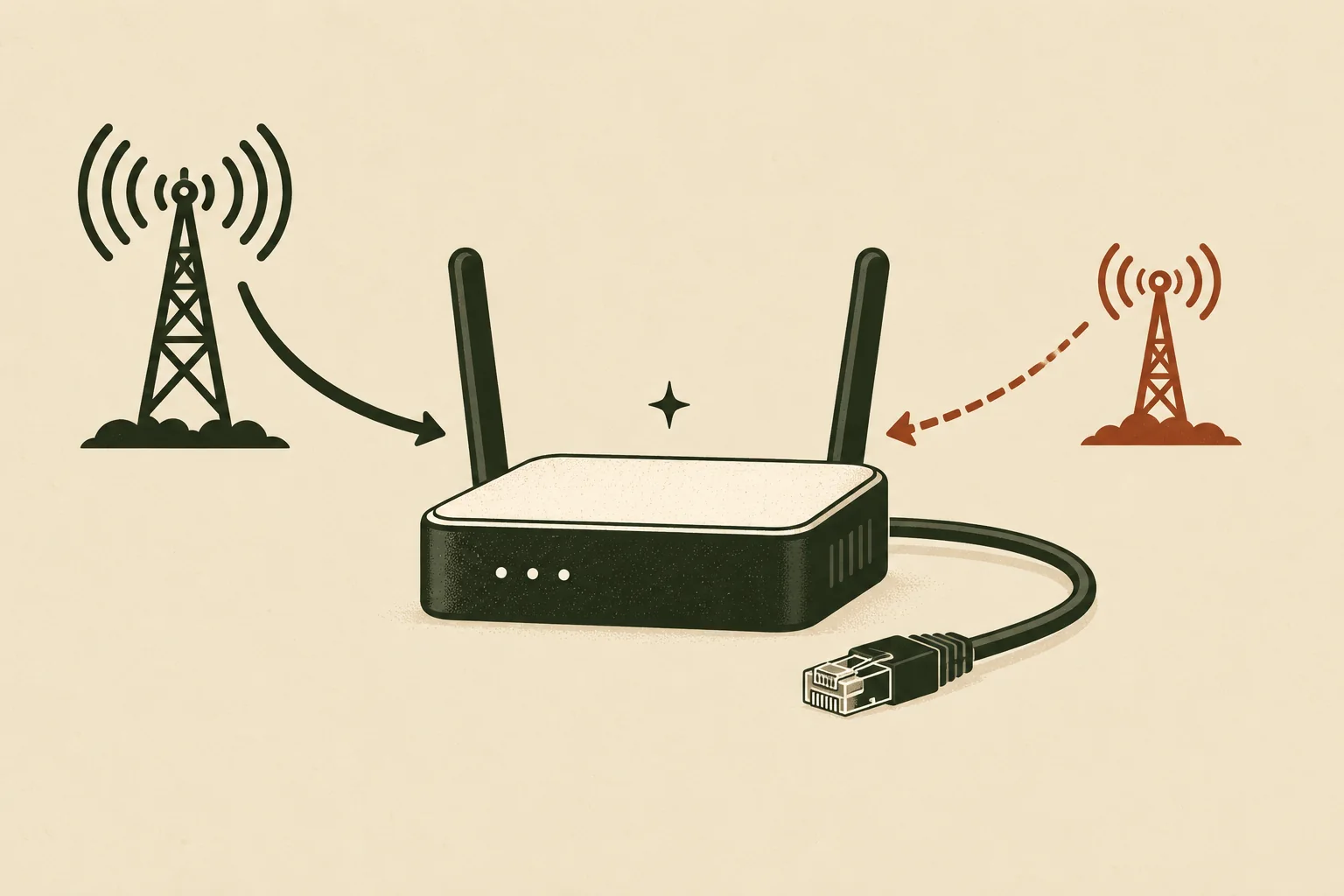
A reliable digital nomad internet plan has three layers: a verified primary connection, an independent mobile backup, and a physical place to relocate. The layers should fail differently. Three devices behind the same accommodation router are still one connection.
Define what your work needs, test each layer from the actual work device, and write the switch sequence before an outage. The goal is not perfect coverage. It is a credible route from “the call is failing” to “the essential work continues.”
Affiliate disclosure: No affiliate links are active in this guide. If commercial links are added later, Capable Nomad may earn a commission at no added cost to the reader. Inclusion must remain based on current coverage, plan, compatibility, and failure-domain criteria—not commission availability.
The three-layer plan at a glance
| Layer | Typical option | What it protects against | What to verify |
|---|---|---|---|
| 1. Primary | Accommodation Ethernet/Wi-Fi or coworking | Normal workday demand | Work-area test, upload stability, calls, access hours, power |
| 2. Independent mobile | Phone tethering, local SIM/eSIM, or dedicated hotspot | Router, ISP, or building-network failure | Different network path, tethering terms, laptop test, data, battery |
| 3. Relocation | Nearby coworking, private office, library, or another trusted workspace | Building power, local congestion, weak indoor signal, prolonged outage | Hours, calls, privacy, commute, booking, power, alternate provider |
If a deadline has a high cost, strengthen the independence of the layers. If a dropped connection is only an inconvenience, a tested phone hotspot and one nearby alternative may be enough.
Translate the workday into connection requirements
Do not begin with a target such as “fast Wi-Fi.” Begin with the traffic that must work.
List:
- Your video platform, typical meeting size, and hours of calls.
- Whether you present video, screen-share motion, or use audio only.
- The largest normal upload and how quickly it must finish.
- Cloud desktops, virtual private network (VPN) clients, source-control, design, or backup traffic.
- Employer security controls and approved network methods.
- Other people and devices sharing the same local connection.
Microsoft’s current Teams guidance shows why context matters. It lists recommended meeting-video bandwidth up to 2.5 Mbps upstream and 4 Mbps downstream per endpoint, with actual use changing by resolution, layout, and frame rate. Zoom lists 2.6 Mbps up and 1.8 Mbps down for 720p HD in its web app.
Google’s remote-work guidance recommends a real test meeting and at least 3.2 Mbps up and down for its example. More important, Google advises observing bandwidth and latency over time because a stable connection—not a single peak—is required for a good call.
Create two requirements:
- Minimum mode: the smallest mode that keeps the work moving, such as audio, essential messaging, and access to a working file.
- Normal mode: the connection needed for expected video, screen sharing, sync, and uploads with headroom.
This makes degradation a planned choice. You can turn off video or pause sync before the connection collapses.
Layer 1: verify the primary connection
“High-speed Wi-Fi” is marketing copy, not evidence. Ask for information tied to the actual room and time of use.
Before booking
Request:
- A recent speed-test result from the room or desk where you will work, including upload, download, latency, date, and time.
- Whether the result used Wi-Fi or Ethernet.
- Whether the connection is private to the unit or shared across a building.
- Router location and whether Ethernet is available.
- Typical occupancy during your work hours.
- A fallback or refund policy if the connection is materially different.
A screenshot is evidence of one moment, not a guarantee. It is still more useful than an unlabeled speed claim.
On arrival
Test from the work position with the real laptop:
- Run several tests at the hours that matter, not only on an empty afternoon.
- Join a test meeting, speak, listen, and share a representative screen.
- Upload a non-confidential sample file similar in size to normal work.
- Confirm required work services connect through any employer-approved VPN.
- Test Ethernet if offered and inspect the cable route for safety.
Look for variation. A connection that reaches a high peak but stalls every few minutes is not work-ready.
Layer 2: choose a mobile path that fails differently
The mobile backup should not depend on the same building router or fixed-line provider as Layer 1. It should also be usable by the work device.
Three common forms are:
- Phone tethering: lowest extra equipment, but it consumes phone battery and may be limited by the plan.
- Local SIM or eSIM: can provide better local terms or a different carrier; device compatibility and activation matter.
- Dedicated hotspot: separates phone and work battery use, but adds a device, charger, plan, and another setup to maintain.
The choice is secondary to verification. Check exact tethering rules, high-speed data allowances, roaming, fair-use language, supported bands, eSIM support, and top-up access. Plan names and coverage maps change; confirm them close to travel.
Run a full laptop rehearsal. Join a test call, use required security software, and send a sample upload. Watch phone or hotspot temperature and battery use for the expected duration.
Independence check
Ask whether the backup shares any likely failure with the primary path:
- Same local carrier or upstream network.
- Same building power with no battery runtime.
- Same device and charging cable.
- Same account or app needed for activation.
- Same weak indoor-signal location.
You do not need perfect independence. You need to understand the shared risks.
Layer 3: preselect somewhere you can relocate
Mobile data may not solve a local coverage gap, building power cut, noisy room, or long outage. A physical fallback can.
Choose one before you need it. Verify:
- Opening hours across your working time zone.
- Whether calls are permitted and a booth or private room is available.
- Day-pass booking, payment, and identification requirements.
- Connection provider if available; a different provider improves independence.
- Desk power and whether the site has backup power.
- Travel time, personal safety, and access during bad weather or local events.
- Data handling rules for confidential work.
A café may work for a short, non-confidential task. It is a weak default for a sensitive client call or a day of focused work.
Decide whether a travel router belongs in the system
A travel router can create a private local network for several devices, share an Ethernet connection, and reduce repeated device setup. Some models help with captive portals or route traffic through an approved VPN configuration.
It does not create internet service. If the upstream connection is slow, offline, or blocked, the router inherits the problem. It also adds power demand, firmware maintenance, configuration, and a new troubleshooting layer.
A router is easier to justify when you need one or more of these:
- Several devices that must stay on one private local network.
- A wired upstream connection shared to wireless devices.
- A repeatable, policy-approved VPN or firewall setup.
- Better control than the accommodation’s device-to-device network.
- A documented captive-portal workflow that the chosen model supports.
Who should skip it: a solo traveller with one laptop and phone, simple tethering, no Ethernet need, and working employer-approved security software may gain little.
Use public networks without security theatre
Public Wi-Fi deserves care, not panic. The U.S. Federal Trade Commission notes that widespread HTTPS means public hotspots are generally safer than they were when websites commonly sent unencrypted traffic. That does not make every network trustworthy.
Use a risk-based checklist:
- Confirm the network name and sign-in process with staff; avoid look-alike names.
- Keep the operating system, browser, and security software current.
- Verify HTTPS and heed certificate warnings.
- Disable local file sharing and automatic joining of unknown networks.
- Use employer-required secure access tools exactly as policy directs.
- Prefer cellular data for especially sensitive work when practical and allowed.
- Treat shoulder-surfing, unattended devices, and visible confidential material as real risks too.
A VPN can protect traffic between the device and VPN endpoint, but it can also add delay or conflict with a captive portal. Google Meet’s troubleshooting guidance explicitly treats VPNs and traffic-inspection tools as possible quality variables. Do not disable an employer-mandated control; contact the administrator instead.
Rehearse the switch before the outage
An internet failover plan is incomplete until the work device has used it.
- Save the backup network instructions somewhere available offline.
- Disconnect Layer 1 without warning the applications.
- Join Layer 2 from the laptop and time how long normal mode takes to return.
- Repeat in minimum mode with video off and heavy sync paused.
- Check how much battery and mobile data the exercise consumes.
- Confirm Layer 3’s route, hours, booking, and contact details.
- Record the trigger for relocation, such as “mobile backup cannot sustain audio and screen sharing for 10 minutes.”
Do this again after changing the phone, plan, router, VPN, laptop, operating system, or authentication method.
What to do when the primary connection fails
Use a short incident sequence:
- Protect the call or deadline. Switch to audio-only, notify participants, and save local work.
- Stop nonessential traffic. Pause cloud sync, updates, streaming, and large transfers.
- Move to Layer 2. Use the rehearsed laptop connection, not an improvised phone-only workaround.
- Protect battery. Plug in the phone or hotspot if safe, reduce screen demand, and budget runtime across laptop and connection.
- Diagnose briefly. Check whether the issue is the device, Wi-Fi, router, upstream service, or work platform.
- Relocate at the trigger. Do not spend the entire viable window repeatedly rebooting the same failed path.
This order preserves the work first. Technical curiosity can wait.
Frequently asked questions
Is phone tethering enough for remote work?
It can be, if the plan allows tethering, the local network is usable, the work laptop connects correctly, data is sufficient, and phone battery/temperature remain manageable. Test a representative call and upload rather than relying on signal bars.
Do I need two SIMs?
Only when the interruption cost and local network conditions justify them. Two plans are most useful when they use meaningfully independent networks. Two brands that roam onto the same local carrier may provide less resilience than expected.
What internet speed is good for digital nomads?
There is no universal number. Use the published requirements of your video and cloud tools, then test the actual workload with headroom. Upload consistency, latency over time, congestion, and other users can matter as much as peak download speed.
Will a travel router improve slow Wi-Fi?
It can improve local control or radio placement in some setups, but it cannot repair an overloaded or failed upstream internet connection. Buy one for a defined network-management job, not as a general speed promise.
Write the plan on one page
Record the primary connection, mobile backup, relocation site, minimum work mode, battery plan, and switch trigger. Include the exact steps needed on the work laptop.
Then test it. A digital nomad internet plan earns trust when it works before the emergency, not when it looks comprehensive in a packing list.
Sources
- Microsoft Teams network and bandwidth requirements — accessed October 13, 2026.
- Google Workspace remote-work connection guidance — accessed October 13, 2026.
- Google Meet video and audio quality troubleshooting — accessed October 13, 2026.
- Zoom Web App system requirements — accessed October 13, 2026.
- FTC public Wi-Fi guidance — published February 2023; accessed October 13, 2026.
- CISA public Wi-Fi tip card — accessed October 13, 2026.